 Refresh for MyEducation BC
What changes
Same site, same account, same information. Refresh for MyEducation BC only changes how it looks in your browser.
What needs doing, first
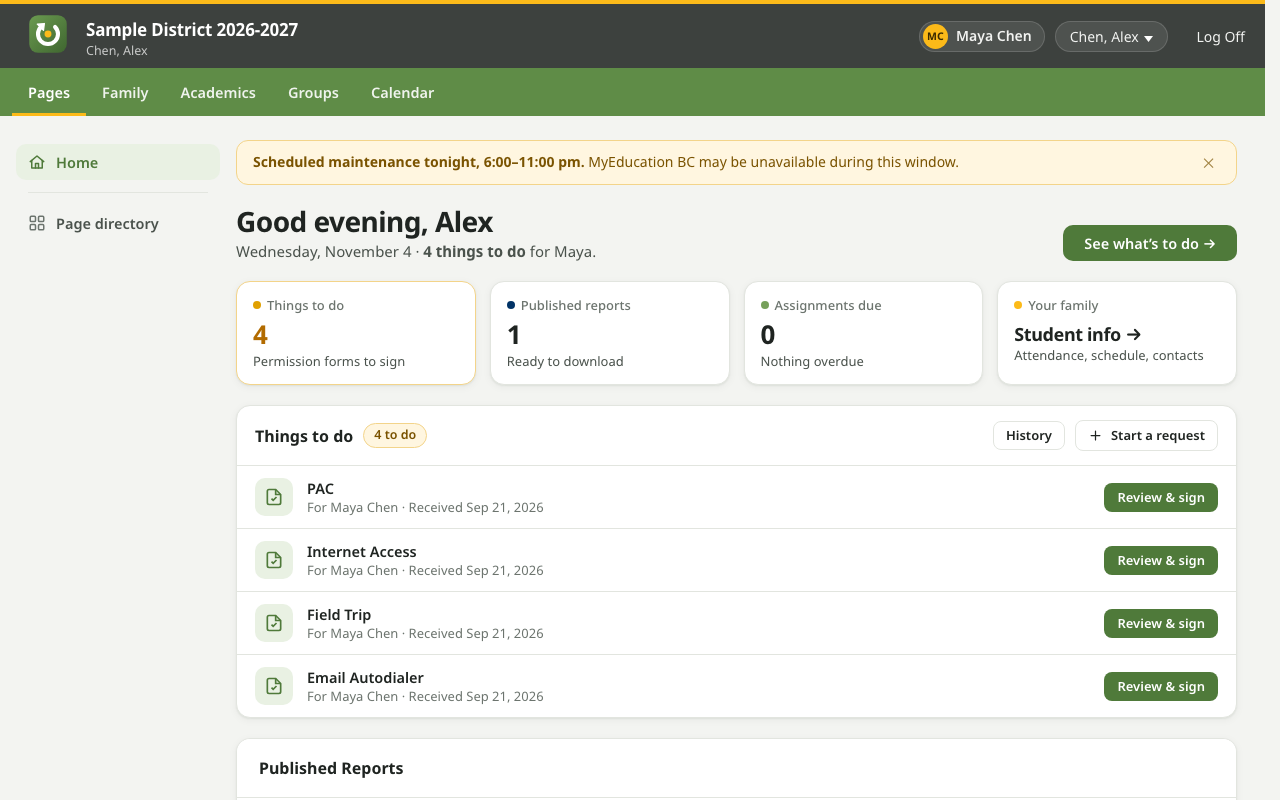
The home page leads with permission forms and published report cards, so you don’t have to dig for them. New reports are marked, and the toolbar icon counts them.
No more popup windows
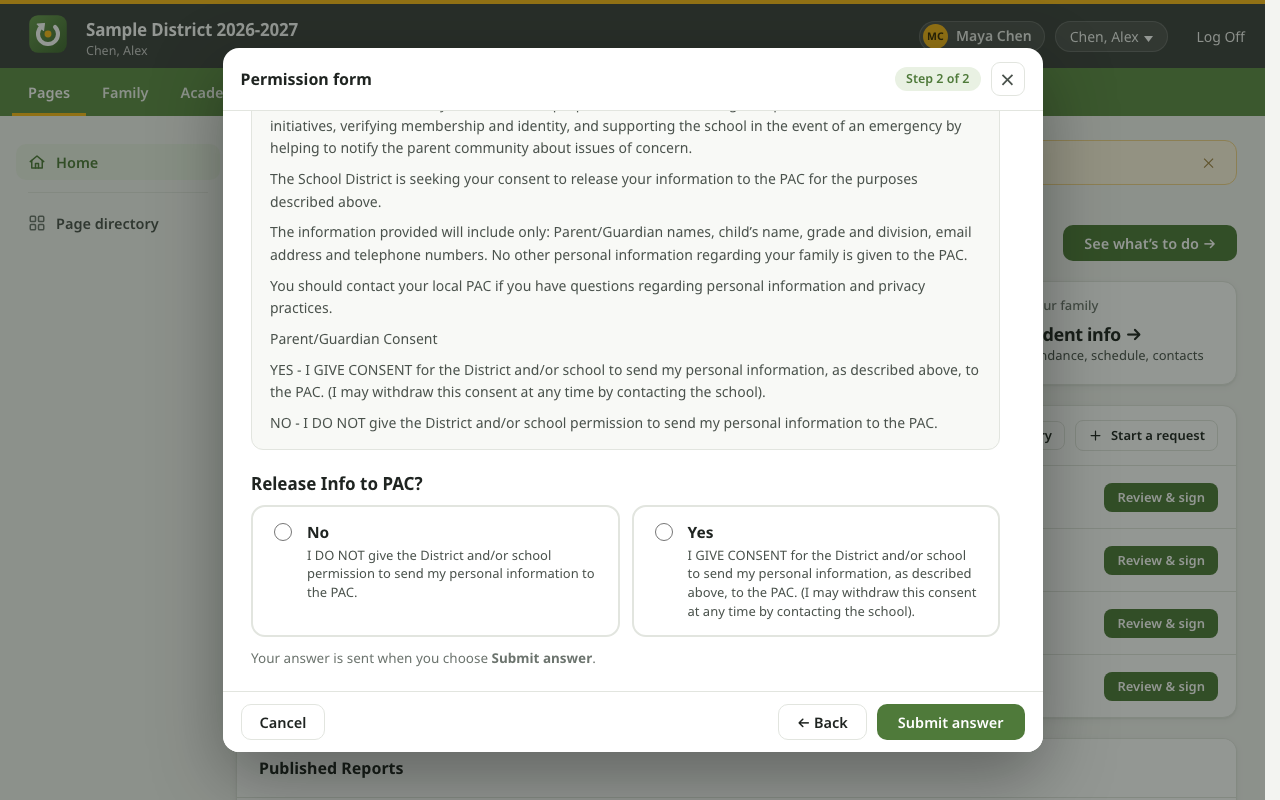
Forms, preferences and wizards open in a tidy panel on the page, with Back, Next and Cancel always in the same place.
Plain language
“Room” instead of “Clssrm”, names written first-name-first, and clear messages when something needs filling in.
Switch between your kids
A student switcher sits next to your name at the top, so you can see each child’s classes, attendance and timetable.
A calendar you can use
A clean month view, your resources beside it, and a proper date and time picker when you add something.
Private by design
Nothing you see on MyEducation BC leaves your computer. There are no accounts, no tracking and no ads.
How to get it
It takes about a minute.
- Open the Chrome Web Store pageClick Add to your browser. It works in Chrome, Brave and Edge.
- Click “Add to Chrome”Your browser will say the add-on can read and change MyEducation BC pages. That’s how it restyles them. It doesn’t touch any other site.
- Sign in to MyEducation BC as usualThe new look appears straight away.
Want the original site back? Click the green Refresh icon in your browser’s toolbar to turn it off, and the page reloads in its original design. Click the icon again to turn it back on. To remove it completely, right-click the button and choose “Remove”.
Good to know
Please read this before you rely on it.
It may not handle every page
It’s been tested on the parts of MyEducation BC that parents use most, and it seems to work fairly well. Some pages may still look odd or not be restyled. And when MyEducation BC is updated, the add-on may not handle the changes well until it’s updated too. If anything doesn’t look right, click the green Refresh icon in your toolbar to see the original site.
Help, problems and ideas
Questions, something that looks broken, or a suggestion? Email refresh.scant827@simplelogin.com. A screenshot and the name of the page help a lot. Please don’t send your child’s personal details.
Questions
The short answers.
Is this from the school district or the Province?
No. Refresh for MyEducation BC is an independent, unofficial add-on made by a parent. It isn’t made, endorsed or supported by the Province of British Columbia, the Ministry of Education and Child Care, MyEducation BC, Follett or any school district. If something about your child’s record looks wrong, contact your school as usual.
Does it change anything at the school’s end?
No. It only changes how pages look in your own browser. When you answer a form or save your preferences, you’re using the site’s own buttons, exactly as you would without the add-on.
What does it do with my information?
Nothing leaves your computer. The add-on has no server and sends no data anywhere. It saves only a little, in your browser: whether you’ve switched it on or off, which reports you’ve opened (so it can mark new ones), and a few details it carries between pages until you close the tab. Read the privacy policy.
Why does my browser say it can “read and change” MyEducation BC?
Every add-on that restyles a website needs that permission for the site it restyles. Refresh for MyEducation BC asks for it only for myeducation.gov.bc.ca, and for no other site.
Does it work on my phone, Safari or Firefox?
Not yet. It works in Chrome, Brave and Microsoft Edge on Windows, macOS, Linux and ChromeOS.
Something looks broken.
Some pages may not be handled well yet, and when MyEducation BC is updated the add-on may not keep up until it’s updated too. Click the green Refresh icon in your toolbar to use the original page, and please email refresh.scant827@simplelogin.com with what you saw.
I have a suggestion.
Great. Email refresh.scant827@simplelogin.com.
Can I install it without the Chrome Web Store?
Yes, though it won’t update itself. Download refresh-for-myedbc.zip and unzip it. Then open chrome://extensions (or brave://extensions), turn on Developer mode, click Load unpacked and choose the unzipped folder.